Getting Started with Align
Welcome to Align — the place where your team, your clients, and your AI-powered tools all work together. This guide walks you through your first steps so you can get up and running quickly.
Accepting Your Invitation
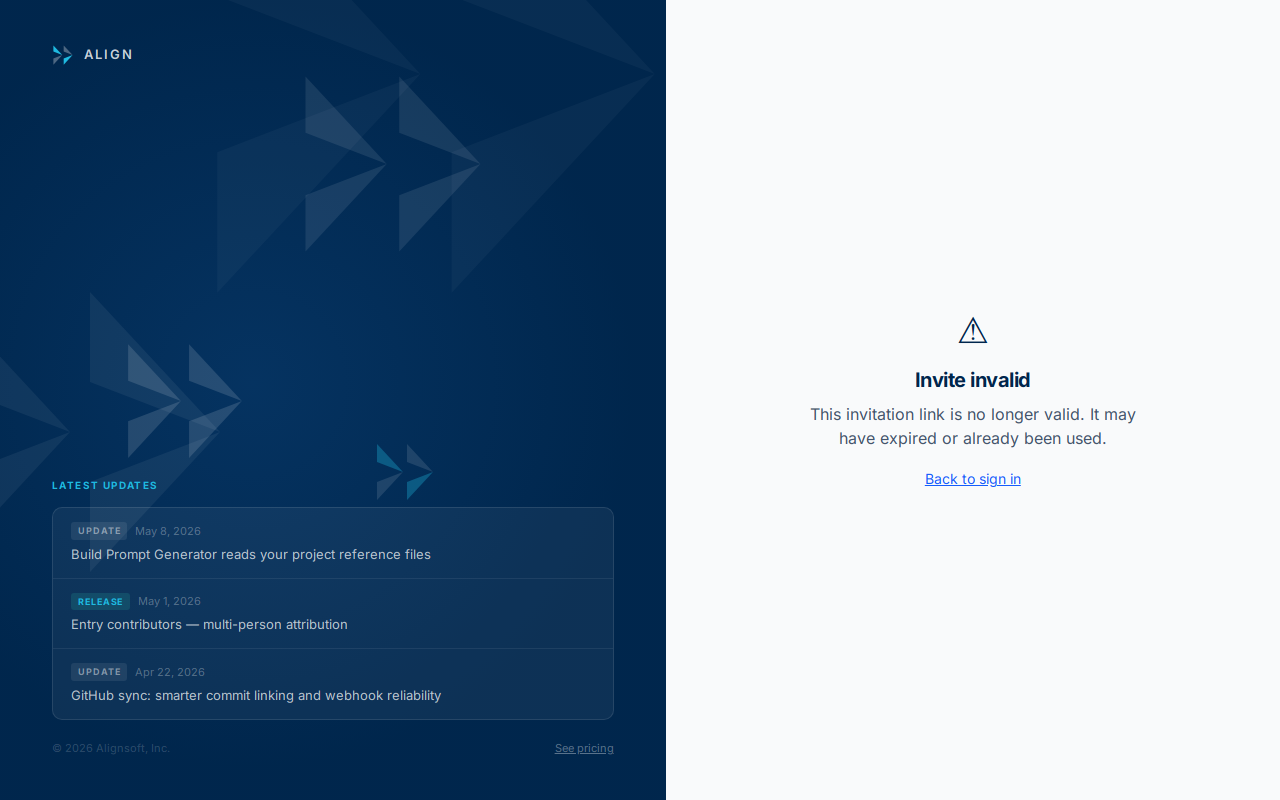
When an admin adds you to Align, you'll receive an email invitation.
- Open the email and click Accept Invitation.
- You'll be taken to the Align sign-up page. Enter your name and choose a password (minimum 8 characters).
- Click Create Account to complete registration.
- You'll be signed in automatically and land on your dashboard.
Logging In
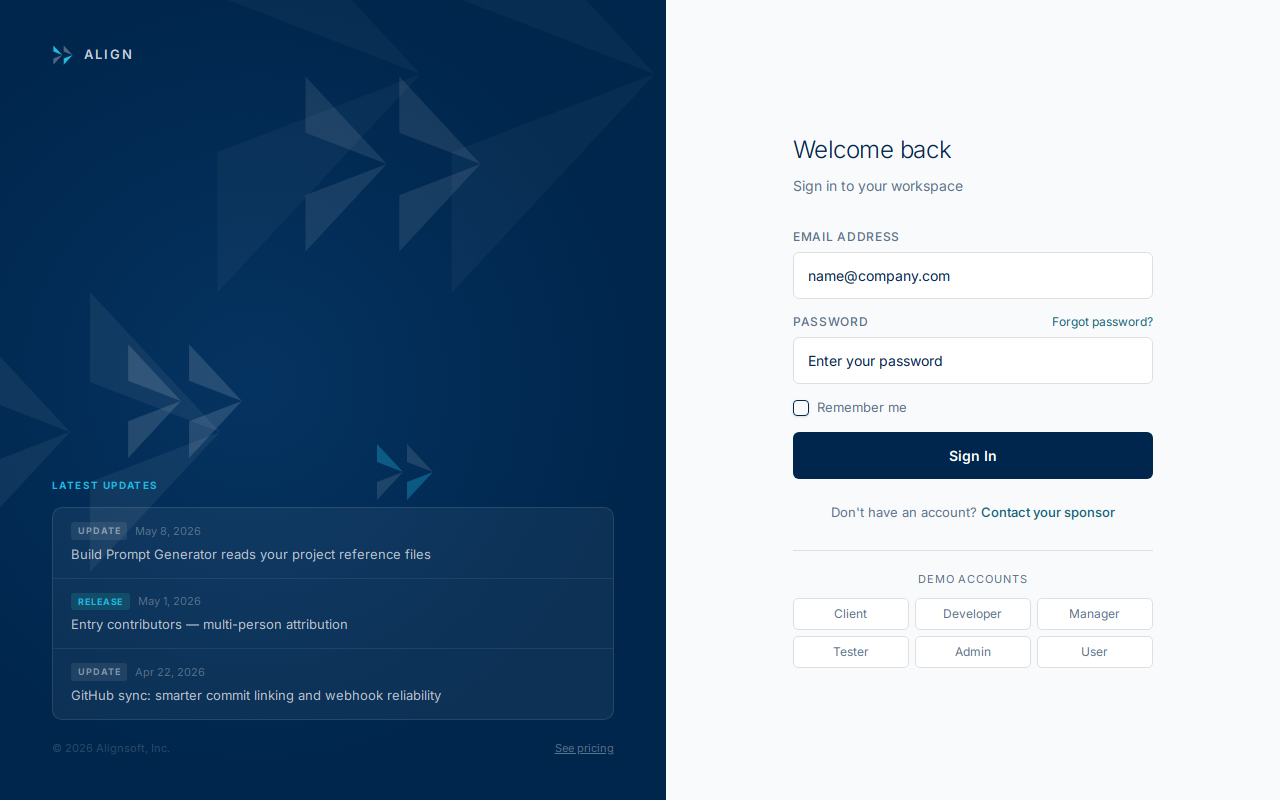
Once your account is created, visit app.alignsoft.us to log in.
- Enter your email address and password.
- Click Sign In.
- If your organisation uses single sign-on (SSO), click Continue with SSO instead.
Setting Up Your Profile
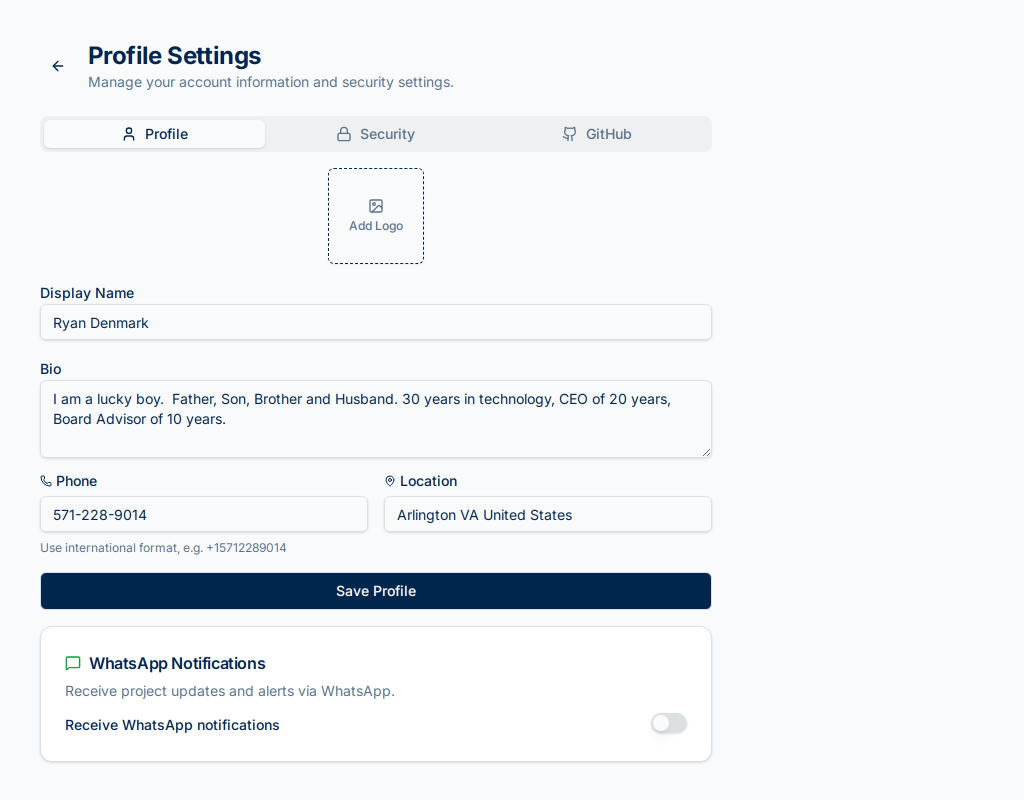
After logging in, take a minute to complete your profile.
- Click your avatar or initials in the top-right corner.
- Select Profile Settings.
- Update your display name, job title, and optionally upload a profile photo.
- Click Save changes.
Understanding Your Dashboard
Your dashboard gives you a snapshot of activity across your projects.
- My Open Items — entries assigned to you that need attention.
- Recent Activity — the latest updates across your projects.
- Project Health — a quick status overview of active projects.
The tiles shown depend on your role. Admins see additional management tiles.

Navigating the App
The left sidebar contains the main navigation:
| Section | What it's for |
|---|---|
| Dashboard | Your personalised overview |
| Projects | All projects you have access to |
| Entries | Cross-project view of bugs, features, and tasks |
| Releases | Release planning and tracking |
| Time Tracking | Log and review time entries |
| Reports | Snapshots and executive summaries |
| Settings | Account and organisation settings |